Profile Actions
Efficient student profile management is essential for maintaining organized academic records. The Action Button (⋮) in each student’s profile provides quick access to key functions.
How to Access Student Actions
Section titled “How to Access Student Actions”- Open the student portal
- locate a student profile
- click the three-dot (⋮) menu
- select the desired action.
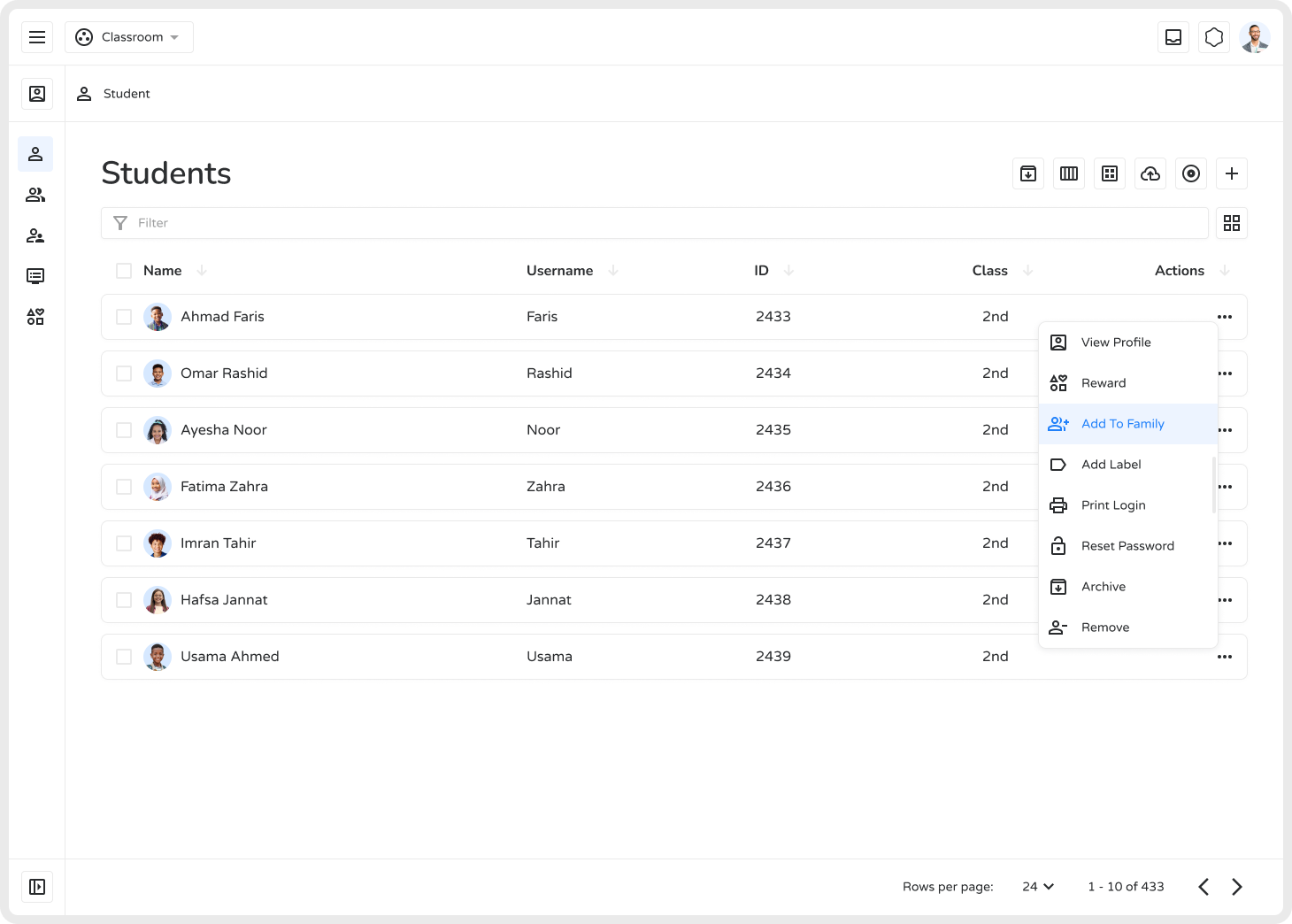
Available Actions
Section titled “Available Actions”View Profile
Section titled “View Profile”Access complete student information, including personal details, academic records, and family associations.
Use for: verification, progress checks, contact review.
Reward
Section titled “Reward”Assign digital rewards such as badges or points and track achievements.
Use for: recognizing excellence, encouraging positive behavior.
Add to Family
Section titled “Add to Family”Link a student to an existing family group and establish relationships.
Use for: enrolling siblings, updating guardianship, maintaining household records.
Add Label
Section titled “Add Label”Apply custom tags for easy filtering and organization.
Use for: tracking special programs, grouping by needs, organizing cohorts.
Print Login
Section titled “Print Login”Generate printable login credentials, including optional QR codes.
Use for: onboarding, password recovery, parent meetings.
Reset Password
Section titled “Reset Password”Issue a temporary password and restore account access securely.
Use for: forgotten passwords, security resets, troubleshooting.
Archive
Section titled “Archive”Deactivate a student while preserving historical data.
Use for: graduations, withdrawals, end-of-year organization.
Remove
Section titled “Remove”Permanently delete a student record (irreversible).
Use for: duplicates, test accounts — only when absolutely necessary.
Key Differences
Section titled “Key Differences”| Action | Effect | Reversible? |
|---|---|---|
| Archive | Deactivates record, keeps data for reporting | Yes |
| Remove | Permanently deletes all data | No |