Secure Access
Protecting personal information and academic records starts with strong password management. Whether updating a forgotten password or changing it periodically, follow these steps to maintain account security.
How to Change or Update Your Password
Section titled “How to Change or Update Your Password”- Go to your Student Profile (via your name or profile picture).
- Scroll to the Change Password section.
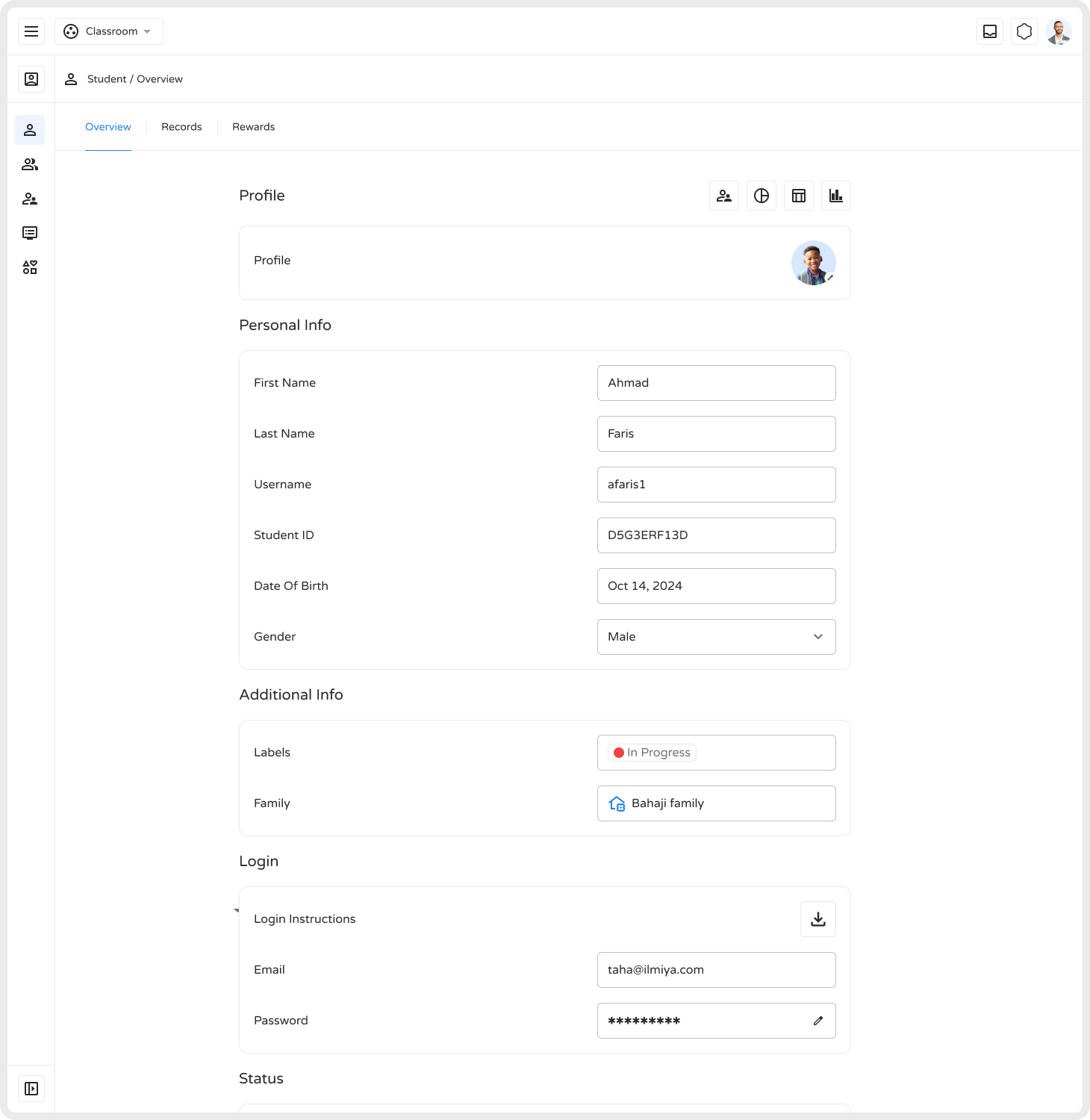
- Enter your new password and confirm it in the second field.
- Re-enter your new password in the “Confirm password” field to avoid typos.
.png)
- Click Reset to save. A confirmation message — “Password changed successfully” — will appear.
Password Creation Tips
Section titled “Password Creation Tips”- Use at least 12 characters
- Include uppercase, lowercase, numbers, and special characters
- Avoid common words or personal information
- Do not reuse passwords from other accounts
Troubleshooting
Section titled “Troubleshooting”| Issue | Solution |
|---|---|
| Password not accepted | Check length, character types, or prohibited characters |
| Forgot current password | Use the “Forgot password?” link to reset via email |
| Error messages | Ensure both fields match and new password differs from recent ones |
Security Recommendations
Section titled “Security Recommendations”- Update regularly — Every 3–6 months
- Use unique passwords for each account
- Consider a password manager for complex passwords
- Enable two-factor authentication if available
A strong password is your first line of defense for keeping student accounts and academic data secure.